# Slot Machine v1
Requirements:
- [OBS v29.1.3+](https://obsproject.com/)
- [Streamer.bot (SB) v0.2.4+](https://streamer.bot/downloads/releases/streamer.bot)
# Fully Customizable Slot Machine v1.0.0
---
---
---
Fully customizable slot machine that can be controlled through chat commands using Streamer.bot.
Original Pen created by user Rattatat on [CodePen](https://codepen.io/rattatat/pen/mXqJEq).
Pen tweaked and modified by [***MarkusoOoO***](https://www.twitch.tv/markusoooo) to communicate with [Streamer.bot](https://streamer.bot/).
This project uses VueJS to create interactive Slot Machine which can be controled using websocket server that communicates with Streamer.bot (*SB for short from now on in this document*).
You can control Slot Machine using commands written into the chat of your stream.
## Example video
---
---
[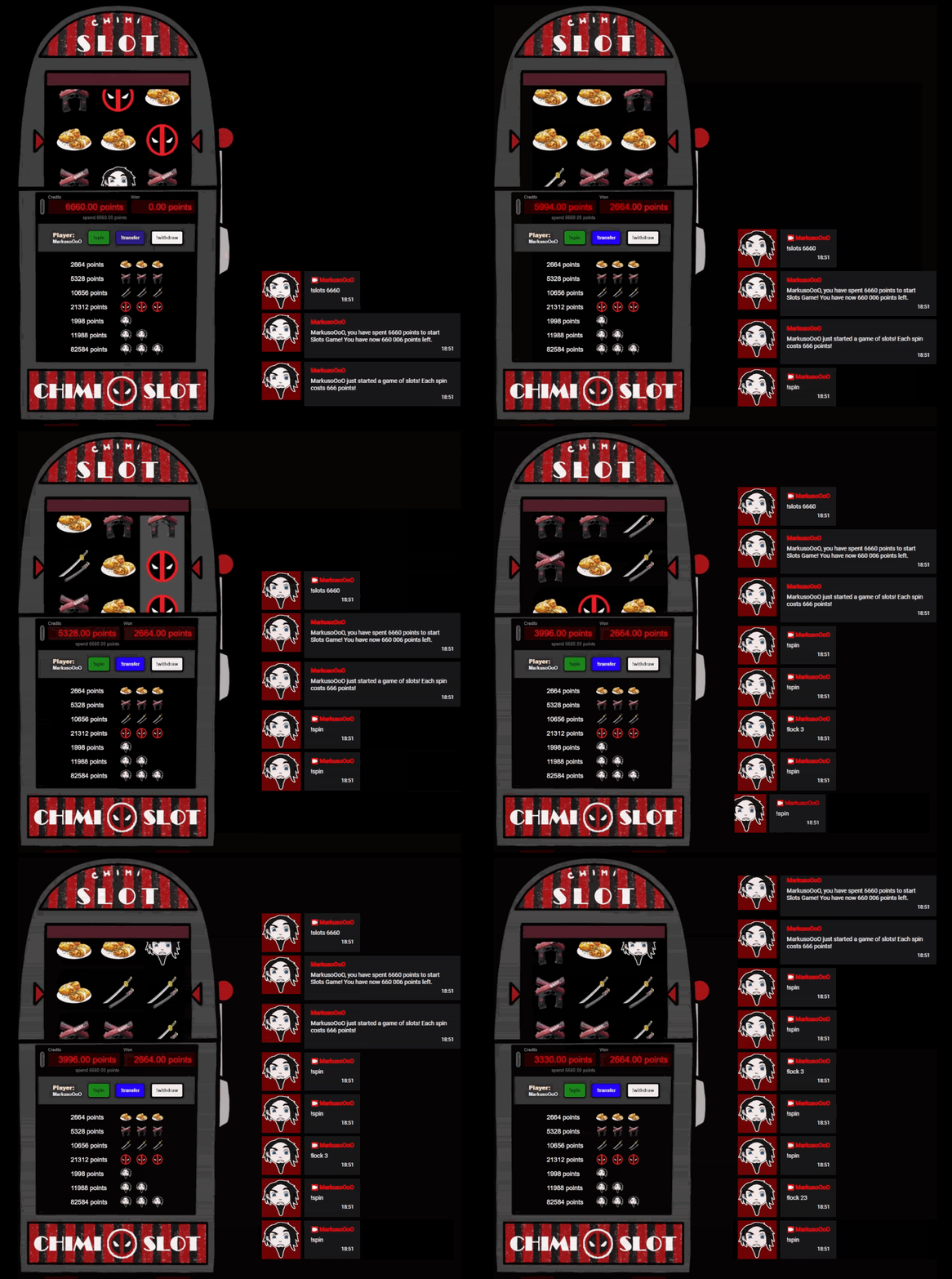](https://www.youtube.com/watch?v=vyXUFI1ySIw)Overlay on top of the browser source seen in this example was drawn by my lovely wife ***<3 [FoxyThePurpleWitch](https://www.twitch.tv/foxythepurplewitch) <3***
Chat widget seen in the demo was made by [***Blackywersonst***](https://www.twitch.tv/blackywersonst).
## Guide to make this work for you
---
---
### Prerequisites
- [OBS v29.1.3+](https://obsproject.com/)
- [Streamer.bot (SB) v0.2.4+](https://streamer.bot/downloads/releases/streamer.bot)
- Zip file downloaded from this [Ko-Fi page](https://ko-fi.com/s/a60203a6a1)
- \*Points system is **OPTIONAL** but **HIGHLY recommended** (Commands should use custom points system as a way to generate and manipulate points for Slot Machine... this project **WILL WORK** even without any Points system)
- Determination and [plushie to squeeze](https://www.kidrobot.com/products/marvel-deadpool-riding-unicorn-plush?variant=32772198269025) on successful implementation
\*Examples of points system that can be used for this project:
- **[VRFlad's points system](https://www.youtube.com/watch?v=VCnoT7wqNrE) - TESTED**
- *[TerrierDart's points system](https://terrierdarts.pages.dev/en/ranking_system/core/) - NEEDS TESTING, may not work in current version*
---
### Video Guide
Video instructions coming soon (I say that a lot).
Below is a text version in the "meantime".
---
### Text Guide
1. This guide assumes, that OBS and SB are installed, SB is connected to Twitch and/or Youtube and to the OBS itself
(you can find a tutorial on how to do all of this on [Youtube](https://www.youtube.com/@streamerdotbot/videos) for example).
2. Unzip the zip file downloaded from [Ko-Fi page](https://ko-fi.com/s/a60203a6a1) mentioned in Prerequisites part of this guide.
In the unzipped folder, there are two items, LICENSE.txt and folder called `SlotMachine`.
Place folder `SlotMachine` somewhere on your system, we will need to reference it later.
For example, I will put it into the path `D:\StreamingStuff\SlotMachine`.
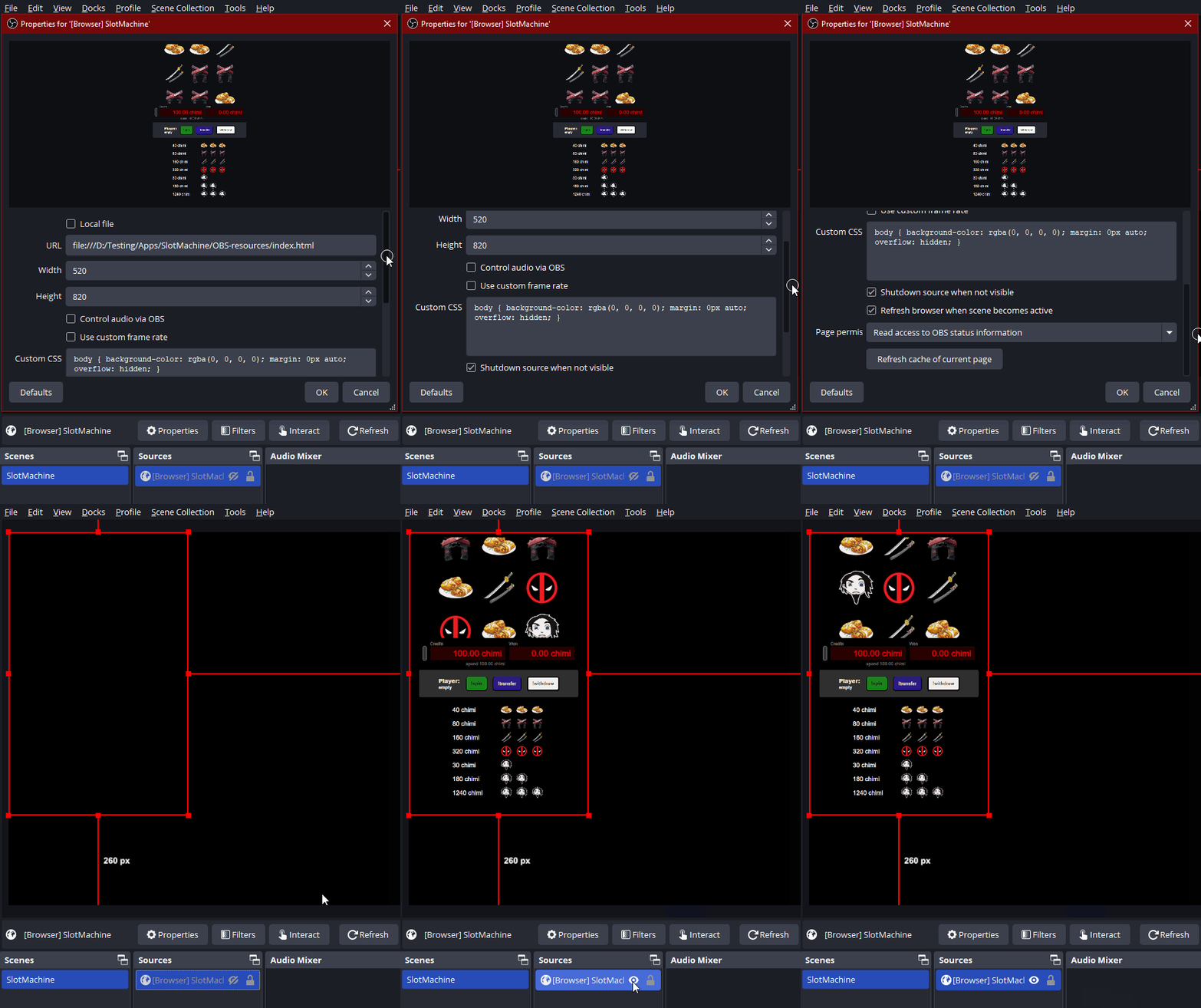
3. Open OBS and create new `Scene` (**take note of the EXACT name of this scene**) and in this scene, `Add` > `Browser` (**also take note of EXACT name of this source**).
Lets go over the fields in Browser source
##### OBS browser source settings
- `URL` needs to contain URL of your `index.html` which can be found in our example path at `D:\StreamingStuff\SlotMachine\OBS-resources\index.html`.
Easiest way how to reference this file, is to open it in any browser (or just double click) and then paste the address into this field. For this example, it would be `file:///D:/StreamingStuff/SlotMachine/OBS-resources/index.html`.
I do not recommend checking `Local file` and selecting it that way.
- `Width` I would recommend at `520`, but you can play with it.
- `Height` I would recommend at `820`, but again, you can play with it.
- Check `Shutdown source when not visible` and `Refresh browser when scene becomes active`.
- Click `Ok` and try hiding and showing the newly created source (you should see SlotMachine showing and hiding).
- If you do not see anything, you probably have wrong `URL`.
[](https://hellp.markuso.ooo/uploads/images/gallery/2024-10/slotobsdemogif.gif)
OBS part is now done! Pat yourself on head and smile! :3
4. Let's setup SB now.
Streamer.bot actions and commands import
##### How to import actions and commands into SB
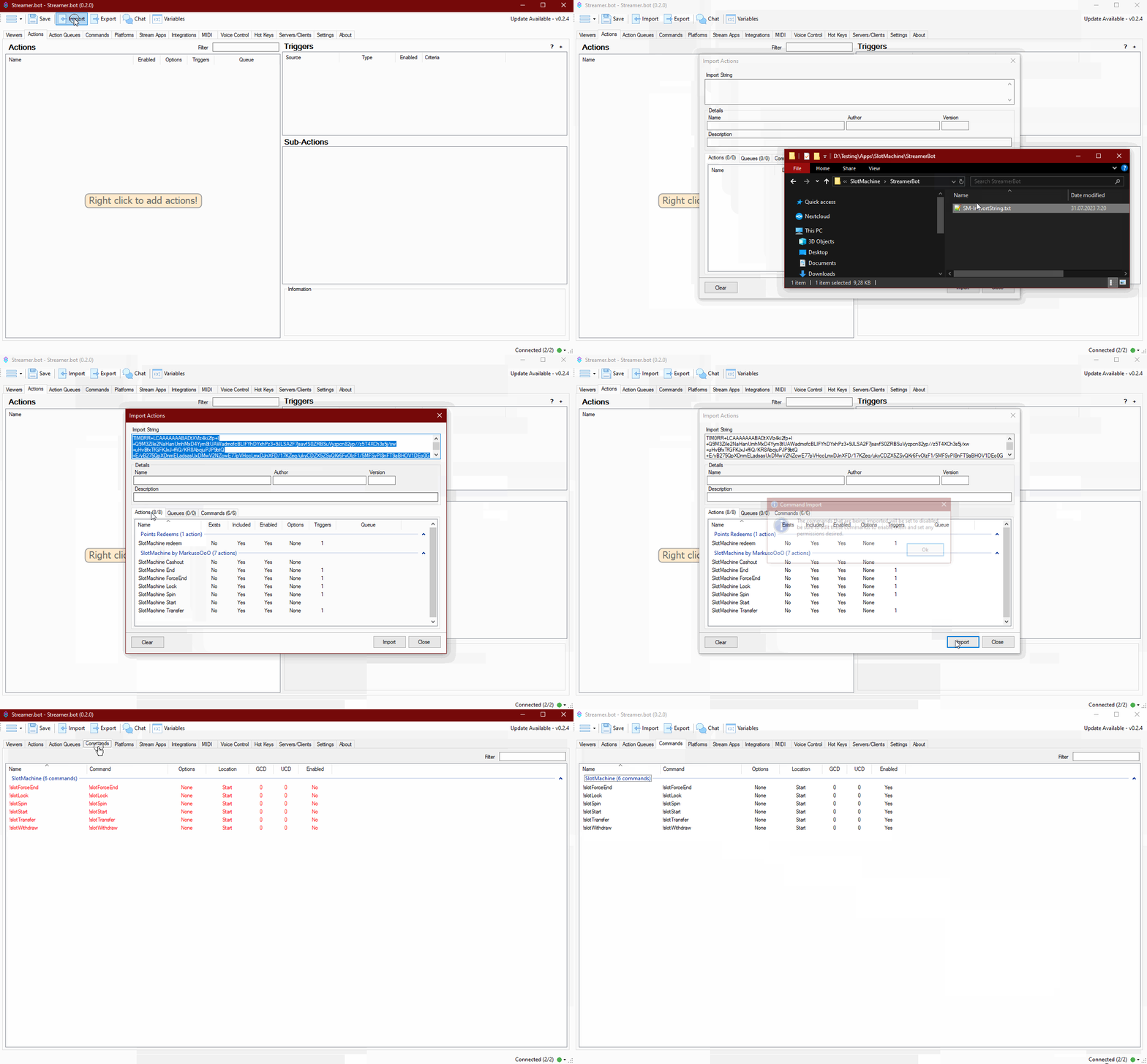
Navigate into `D:\StreamingStuff\SlotMachine\StreamerBot`,
and make sure, you have `SM-ImportString.txt` in this path ready.
In SB, click on Import (on the top bar of the window).
A new window called `Import Actions` should appear.
Drag and drop `SM-ImportString.txt` file into the `Import String` field.
You should see 8/8 actions and 6/6 commands being selected.
Click `Import` and on popup window click `OK` (we are gonna address that popup window right now and enable commands).
In SB, click on tab `Commands`, find a group called `SlotMachine`, right click that group (with blue color), select `Group` > `Enable All` (or enable all commands one by one, if you struggle to find the option described).
[](https://hellp.markuso.ooo/uploads/images/gallery/2024-10/slotsbimport.gif)
Slot Machine websockets settings
##### SB websocket server settings
Now we need to make sure, that SB can communicate with Slot Machine.
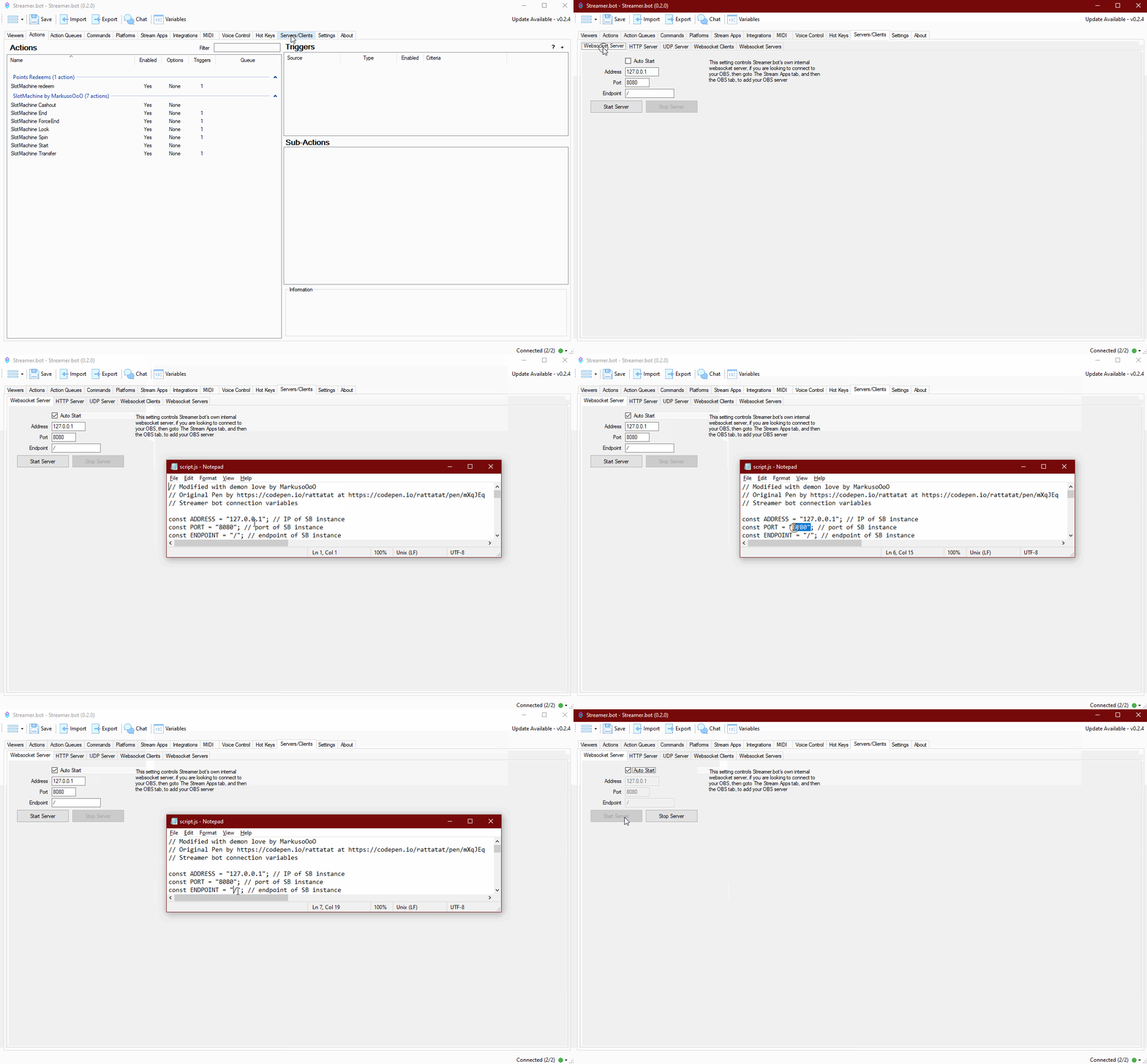
Select tab `Servers/Clients` > `Websocket Server` **(Server, not Servers!)**.
Check `Auto Start` (to make sure, we do not need to start the server every time we restart SB). And click on `Start Server`.
Take note of the `Address`, `Port` and `Endpoint`. These must match with variables in `script.js` (open this file with Notepad, or other favorite editor) located in our example path at `D:\StreamingStuff\SlotMachine\OBS-resources\script.js` first three uncommented lines (uncommented line has no `//` at start of the lines).
In SB, default values are: IP - `127.0.0.1`, Port - `8080`, Endpoint - `/`, so these should match with values in `script.js`.
If they do not match or you use different values, change them accordingly in both places.
[](https://hellp.markuso.ooo/uploads/images/gallery/2024-10/slotsbwssettingsjs.gif)
Streamer.bot Variables
##### SB arguments and their options
In SB select `Actions` and select `SlotMachine redeem` (this is Action that starts it all, binded to command !slotStart).
`Sub-Actions` (right side of window) have a few places that should be checked. On top there is a folder called `Variables - CHECK ME!`. Click the small `+` button.
You can find comments for each set of variables in SB itself, but let's glance over them also in this guide (double click each sub-action if you wish to change it).
- `connection` indicates which OBS instance we wish to use. If you use only one OBS instance, leave it at the default value of `0`. If you use multiple instances of OBS (for multi PC stream setup f.e.) look into the `Stream Apps` tab and choose OBS instance (I know there are other broadcaster apps than OBS, but I have chosen to ignore them... LUL) you wish to connect to (number is all the way to the left).
- `slotsBetMin` & `slotsBetMax` indicate how much points is required in minimum to allow the game to start and how much is the maximum points. For both of them, please use multiples of 10
(**so our smallest possible amount always needs to be 10!**).
In short, slot machine game will not start if you use values that do not end with `0`.
- `slotsStartActionName` is self explanatory from its name. It is the name of Action in SB, which is in the imported group `SlotMachine by MarkusoOoO`. Keep it at default values if you do not plan on renaming any Actions.
- `slotsSceneName` and `slotsSceneSource` must match exactly Scene name and Source name in OBS (we already set these two in the third point of this guide).
[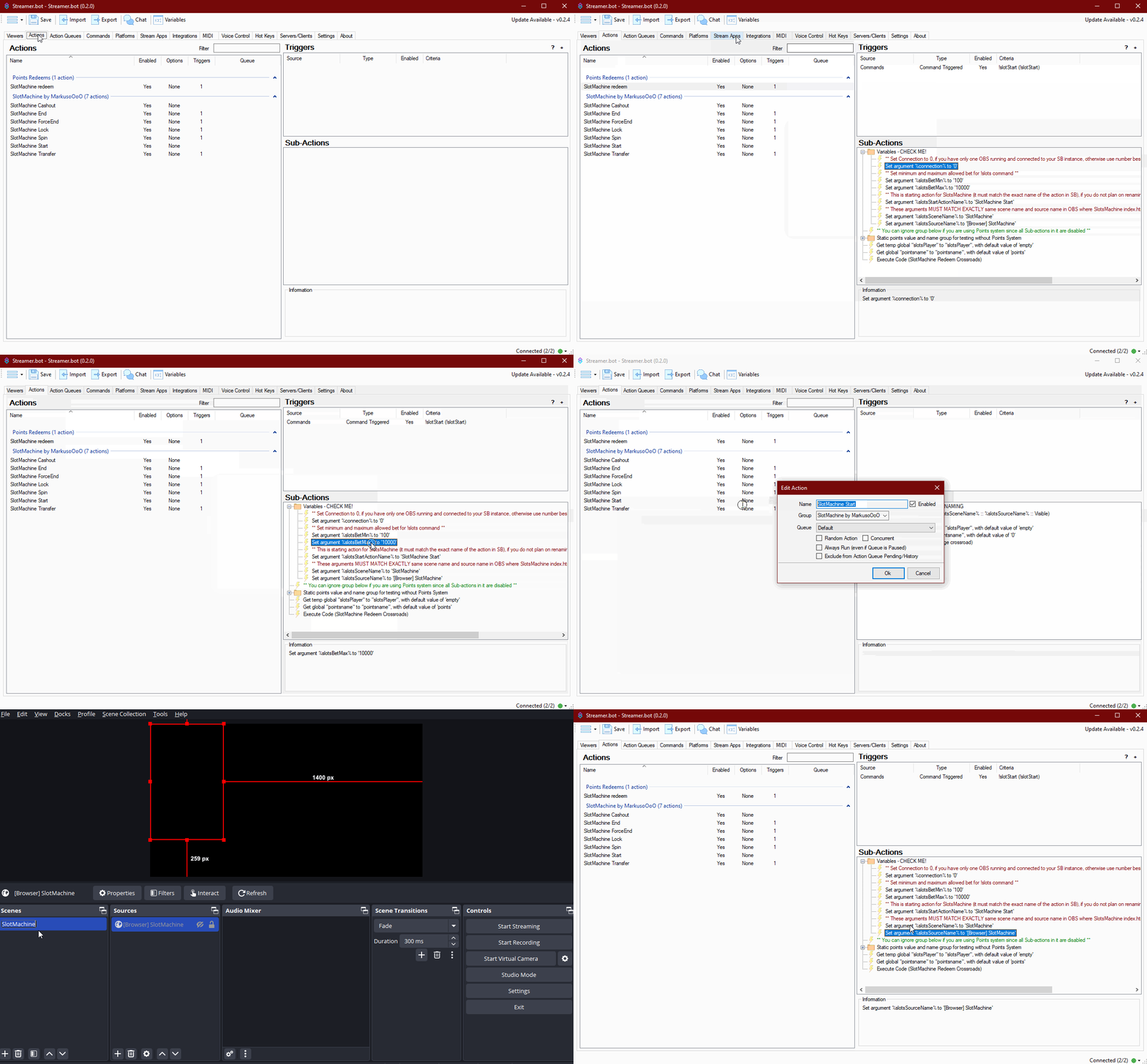](https://hellp.markuso.ooo/uploads/images/gallery/2024-10/slotsbvariables.gif)
Streamer.bot C# compile check
##### SB C# compiling checks
There is four C# sub-actions in the actions and each of them needs to be checked:
1. 1. 1. In SB select `Actions` and select `SlotMachine redeem`. Double click `Sub-Action` called `Execute Code (SlotMachine Redeem Crossroads)` and hit `Compile`. You should see in `Compiling Log` this message: `Building out needed information... Compiled successfully!` (if you see something else, you are probably missing some references, so click on `Find Refs` and then `Compile`). Click `Save and Compile`.
2. In SB the `Actions` tab, select `SlotMachine Cashout`. Then double click on `Sub-Action` called `Execute Code (Slot Cashout Crossroad)` and click on `Compile`. You should see in `Compiling Log` this message - `Building out needed information... Compiled successfully!` (if you see something else, you are probably missing some references, so click on `Find Refs` and then `Compile`). Click `Save and Compile`.
3. In SB `Actions` tab, select `SlotMachine Lock`. Then double click on `Sub-Action` called `Execute Code (Check Reels Lock Argument Crossroad)` and click on `Compile`. You should see in `Compiling Log` this message - `Building out needed information... Compiled successfully!` (if so, ignore three next lines in this guide and click `Save and Compile`).
4. Last one is hidden inside the `Action` called `SlotMachine redeem` in the group `Static points value and name group for testing without Points System`. Double click it and make sure it compiles as the rest of them. Leave this C# `Sub-Action` disabled (you can tell it is disabled, since it has pink/purple color, not black). Enable it **ONLY IF** you need it for testing, since you do not use any Points System.
[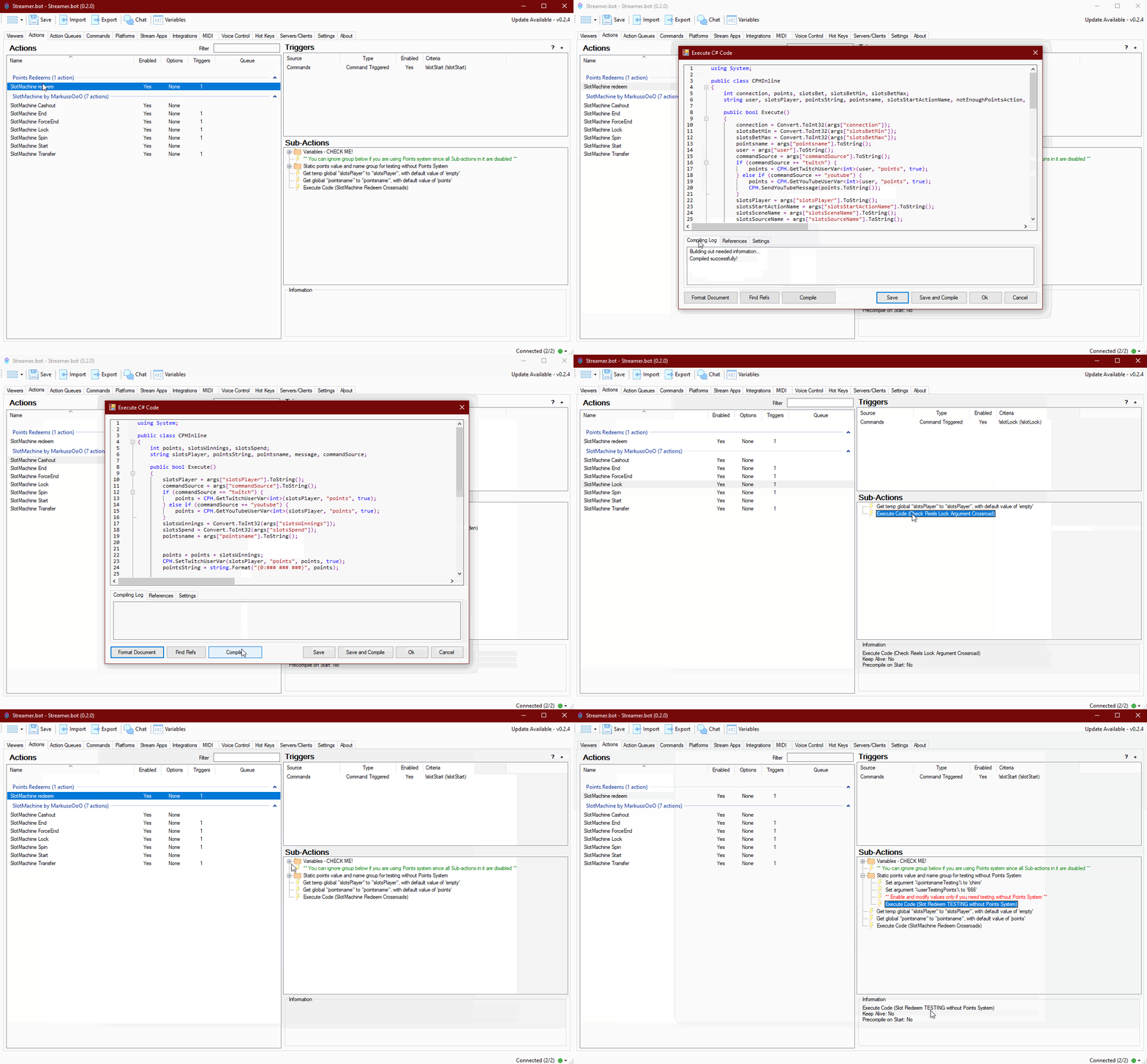](https://hellp.markuso.ooo/uploads/images/gallery/2024-10/slotsbcompile.gif)
**If you see some dependency errors after clicking on any compile button, below is a fix!.**
In `Execute C# Code` window, next to `Compiling Log`, click on `References`. You have to manually add `System.Linq.dll` & `System.Core.dll`. How? Right click the white space in `References` tab and click on `Add reference from file...`. Into `File name` fill in `System.Linq.dll` and click `Open`. And do same for `System.Core.dll`. Try clicking `Compile` now and you should see in `Compiling Log` this message - `Building out needed information... Compiled successfully!`. Click `Save and Compile`.
**Do this only if you rename any of the actions!!!** In SB `Actions` tab, select `SlotMachine Start`. Once again, on top, there is folder called `Variables - CHECK ONLY IF RENAMING`. This folder contains names of all `Actions` from group `SlotMachine by MarkusoOoO`. AGAIN, there is no need to change anything, unless you are renaming actions in SB.
## Testing and explanation of commands
---
---
It is time for testing, so let's go over the commands and how they work
**Make sure your Slot Machine OBS source is hidden before testing or NOTHING happens!**
Once Slot Machine game starts with first command !slotStart, any other command will work ONLY for user who started the game (exception is last command listed here, !slotForceEnd).
#### There is three situations when Slot Machine game ends
1. Player reaches 0 at Credits and also has 0 at Won (game ends automatically, telling player he lost everything in chat).
2. Player decides to use !slotWithdraw.
3. Someone writes !slotForceEnd (same as !slotWithdraw, but anyone can use it, if not moderated)
#### Try typing following commands into twitch/youtube chat for testing
`!slotStart points amount` sets all pieces in action, if all checks are passed (minimum, maximum point amounts, C# compiles, OBS source and scene names are correct, all arguments are happy, Lucifer smiles, etc..) it shows OBS source with Player Name (whoever started the game) and Credits with same amount that are written after the command !slotStart. Name of the points is by default called `points`, unless you changed it using your Points System of choice (or use Testing argument, described below).
Example for !slotStart
`!slotStart 200` initiated by me, would fill under Player: MarkusoOoO and under Credits: `200 points` (since I did not change default points to something else in my example).
**Side note
Amount of point your are betting must be multiples of 10, eg. 10, 20, 30... 300, 310, 320... 1110, 1120... Reason being, actual spin cost is always divided by 10. If you try to use something like "!slotStart 111" it will not let you through and you will get a response in the chat complaining.**
Example for !slotSpin
`!slotSpin` (yup that's it)
Examples for !slotLock
`!slotLock 23`: locks second and third reel
`!slotLock 3`: locks third reel
`!slotLock 123`: locks all three reels (if you do this, and then you !slotSpin, you just spent credits for nothing KEKW)
Example for !slotTransfer
Before I use the command, I see that under Credits is 0 and under Won is 690.
Using `!slotTransfer` shifts Won to 0 and transfers it to Credits ( in this case to 690), so I can continue spining using Credits.
Example for !slotWithdraw
Before I use the command, I see that under Credits, I have 420 and under Won is 690.
Using `!slotWithdraw` I see in chat, that game ended and I got 1110 points added to my current points.
Example for !slotForceEnd
`!slotForceEnd` - same thing happens as with !slotWithdraw
***Few last notes*** Once somebody starts the game with !slotStart command, only that user can use commands tied with the game, nobody else!
**Not even you as a streamer!**
However, there is one safeguard command, !slotForceEnd, that will end the game immediately and it does not matter who writes it (I suggest making this MOD only command).
And here we are! Did all of the commands work as expected?
Well, you just finished the setup!
Well done! Get some ice cream, squeeze your plushie! **YOU** did it!
## What can go wrong?
---
---
Here is list of possible issues that you could encounter
- `!slotStart` command outputs that you have only 0 points.
Well, you either should get some points first (using test subaction, read below), or you are not using any Points System. Please refer to top of this guide, where you can choose either VRFlad's Point System or TD's point system.
However, if you just want to make sure everything works and test the Slot Machine, you can, as a temporary workaround, set fix value of points to whoever calls the `!slotStart` command and triggers `SlotsMachine Redeem` action.
I prepared required C# `Sub-Action` for this in `Action` called `SlotMachine redeem` in group called `Static points value and name group for testing without Points System`. Select `Sub-Action` inside this group, called `Execute Code (Slot Redeem TESTING without Points System)`, right click it > `Enabled`. There are also two more `Sub-Actions`, with values of amount of testing points and points name (you can change that if you wish, default testing amount is `666` with points name `chimi`).
Now you can test !slotStart and other commands. But you will always set user to have the same amount of points we just defined and it will resets itself on each start of new game. So please, either use one of already made Points Systems or code your own.
REMEMBER
Disable Set user specific subaction when you do not need it anymore for testing and have Points System in place!
- `!slotStart` command does not output anything into the chat. Well, you probably forgot to enable the command described in step 4 of text guide, or something is crashing. Look into your log in SB and try to point out the issue or send it either to SB discord or try contacting me via DM with your log.
Something else is not working? Refer to Found a bug? section below.
## Can I tweak visuals/function to my liking?
---
---
Yes! This project is fully customizable!
Since this project is mainly made with VueJS, you can basically modify any behaviour and/or add more features straight in `script.js`.
Other resource changes, eg. images of items on Slot Machine or sounds effects, can be easily swapped with provided example files (just keep the naming of the files same) in the paths for my example: `D:\StreamingStuff\SlotMachine\OBS-resources\images\` and `D:\StreamingStuff\SlotMachine\OBS-resources\sounds\`. Images work best when they have "squared" resolution.
If you want to change colors, positioning, fonts, font size, etc... use `style.css`.
TIP 1
You can add overlay on top of browser source, which will add look for actual Slot Machine (you can find overlay drawn by PurpleFoxWitch in `D:\StreamingStuff\SlotMachine\OBS-resources\overlays\`.
This overlay might not fit your stream, so create your own, if needed.
TIP 2
In OBS you can add transition to show and hide the source with Slot Machine to make browser source appearing and disappearing look way smoother.
You want to change currency name? Use **Points System** for that. Or you can **just for testing** use pre-made `Sub-Action` in `Action` called `SlotMachine redeem` in group called `Static points value and name group for testing without Points System`. Double click `Sub-Action` inside this group, called `Set argument %pointsname%` and change `Value` to whatever name of points you want.
REMEMBER
Disable Set argument subaction when you do not need it anymore for testing and have Points System in place!
## Found a bug?
---
---
Let me know, so I can fix it!
You can write a comment (login is required) directly below this guide (fastest way to reach me) or
try to reach out to me elsewhere at [MarkusoOoO](https://markuso.ooo).
## Known issues (Work in progress)
---
---
This project is by no means complete. It needs to be properly tested by other users than myself, to make sure everything is working as expected.
TD's Points system might not work in current release (I did not test it properly yet). I will implement it eventually (wink).
Video guide will be provided (soon, cough cough).
## Do you like what I do?
---
---
Feel free to leave a "motivation" for me at my [Ko-Fi page](https://ko-fi.com/markusoooo).